Bu sayfa henüz çevrilmedi — İngilizce sürüm gösteriliyor.
Ask the assistant to set up or simplify your system
Give the AI assistant a goal; it proposes one card of changes you check, apply and can undo.
22 Kas 2026
You can give the AI assistant a goal instead of doing every setting by hand. For example: "I'm the only person using this. Make my system as simple as possible." The assistant looks at how your business is set up and what you actually use, then shows one card with every change it suggests. Nothing changes until you press Apply, and Undo all puts it back.
Before you start
- Your plan must include the AI assistant.
- Changes for the whole business (modules, business settings, document numbering, print templates, warehouses, taxes, units) need an administrator of your business.
- Anyone can change their own menu and their own personal settings.
- Changing what another person sees or can do (their access, or their menu) needs an admin who manages access.
How to ask
- Click Help at the bottom of the screen to open the assistant.
- Type what you want in your own words, in English, Dari or Pashto. For example:
- Make my system as simple as possible, I work alone
- We don't use booking and HR, turn them off
- Use the compact template for invoices by default
- Set up the system for a small pharmacy
- The assistant first checks your setup (you see its progress), then shows the card.
Read the card
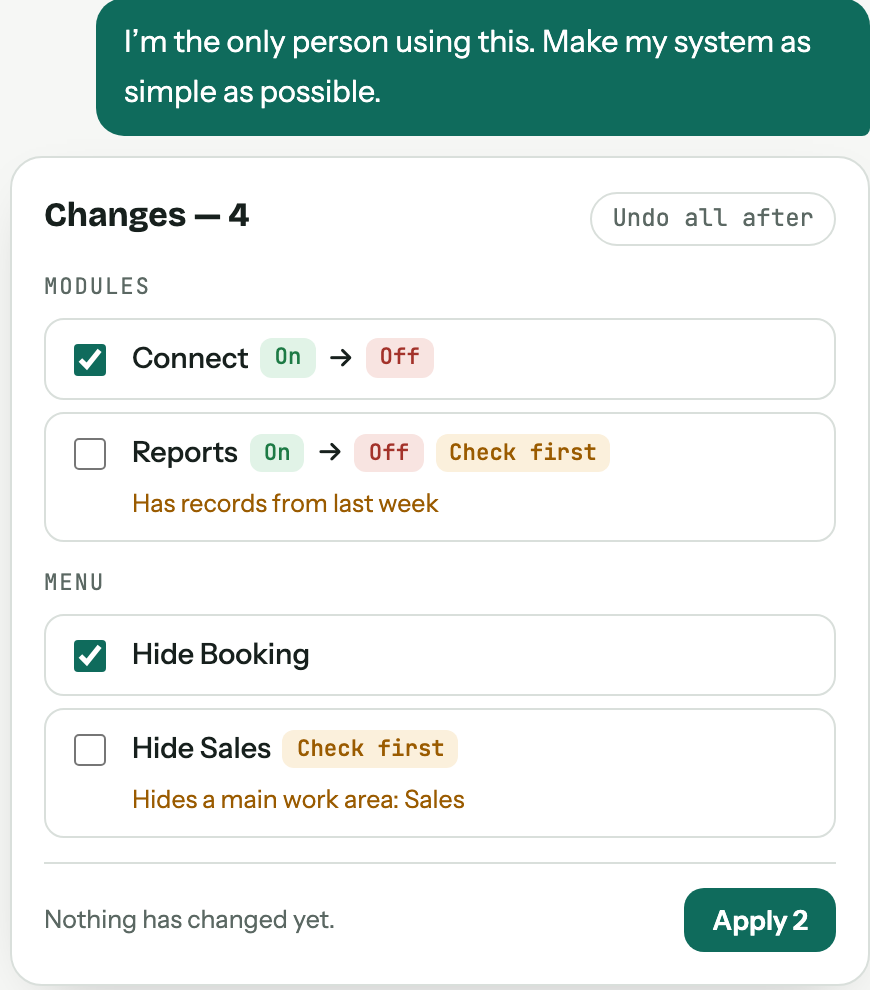
- Changes are grouped: Modules, Menu, Settings, Access, Dashboards, Warehouses, Taxes, Units, Document numbers, Print templates.
- Ticked changes will run. Untick anything you don't want.
- Some changes start unticked and are marked Check first, with the reason. Tick them only if you are sure. These include: changes to someone else's access or menu, switching off a module that has records from the last 90 days, switching off Reports or Dashboards, hiding a main area such as Sales, and a new numbering prefix (numbers restart from 1).
- Press Apply N changes to run the ticked ones. Each change runs in turn. If one fails, it stops there and the changes before it stay applied.
After you apply
- The card shows each change as Applied, Skipped or Failed, and checks that the changes are in place.
- A big goal may come in batches. Press Continue with the next batch for the rest.
- Undo all prepares a card that reverses everything. See Undo changes the assistant made.
Good to know
- The assistant never deletes records. Switching a module off hides its menus, pages and settings; your data stays, and you can switch it back on. It can switch back on only the modules your business switched off itself.
- Not covered yet: branches, users and groups, price lists, approval rules, and creating new reports.
- A large goal uses more of your monthly AI allowance. If the limit is close, the assistant tells you and stops before starting.
- The same goals work from the Usystems connector in ChatGPT or Claude: you approve the changes there, and Undo works the same way.
Bu faydalı oldu mu?